
Designing for Large-Format Printing
Everything you need before submitting artwork for your custom flag or table cover — file specs, vectorization, software recommendations, and answers to the questions we hear most.
Common Questions
Search by keyword or question — find answers fast. Or scroll down for the full reference guide.
Download Your Template — Free
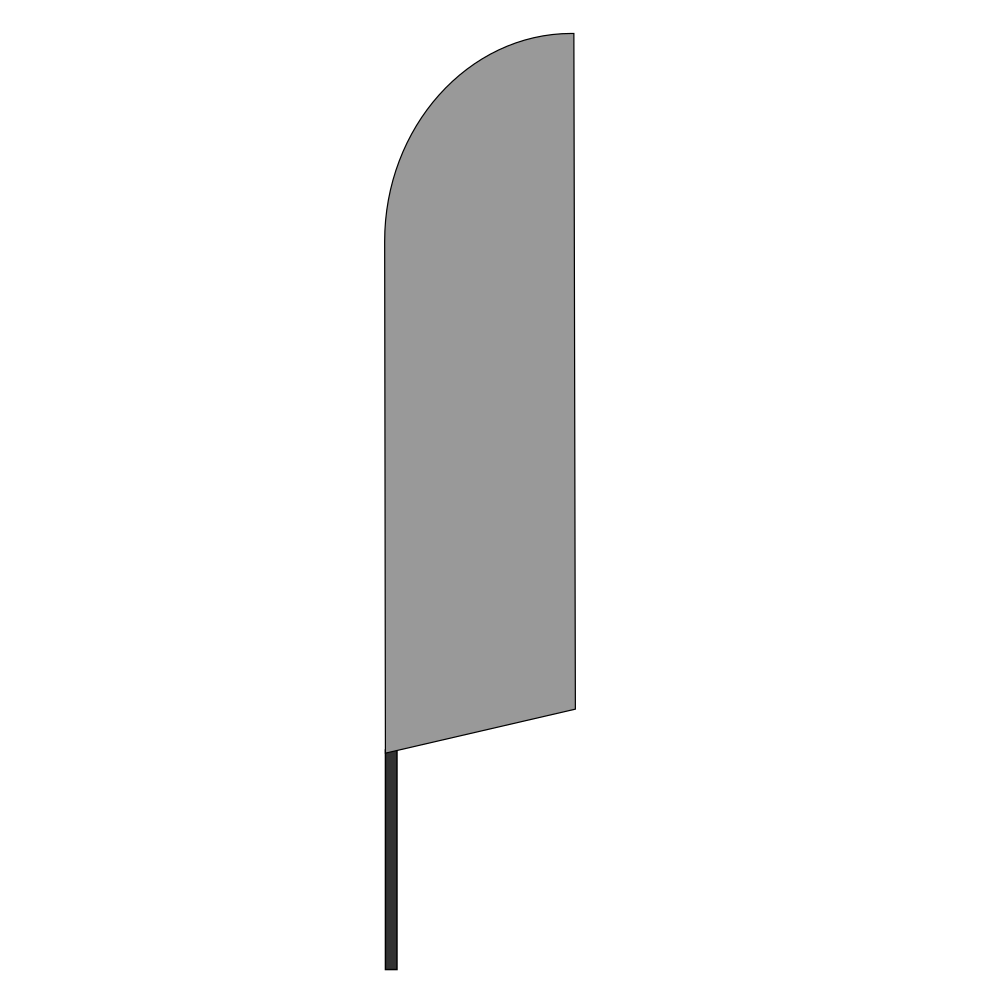
Design before you order. Each template includes exact print dimensions, bleed zones, and safe areas. No purchase required.
- Exact print dimensions included
- Bleed zone marked (0.25" extension)
- Safe zone for logos and text
- Opens in Illustrator, Inkscape, Affinity
- Full front-to-floor layout
- Bleed zone marked (0.25" extension)
- Safe zone for logos and text
- Opens in Illustrator, Inkscape, Affinity
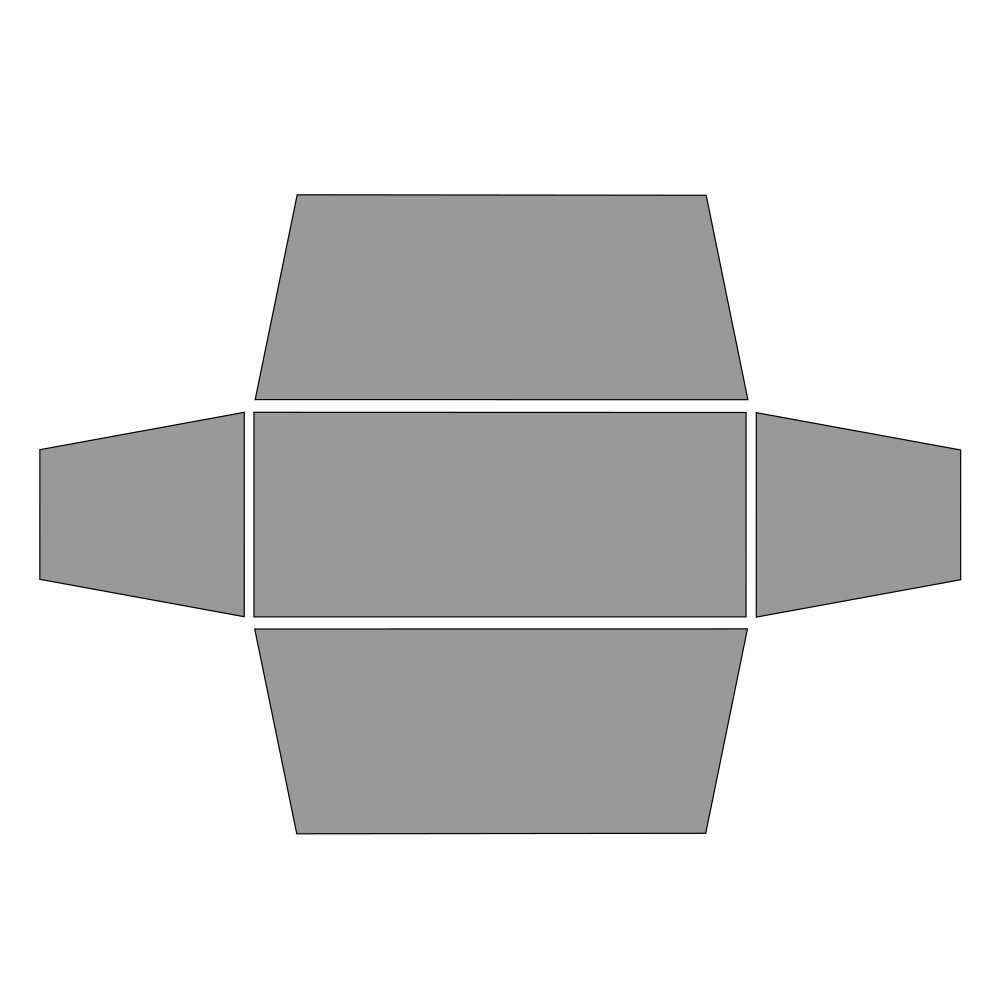
SVG files open in Adobe Illustrator, Inkscape (free), and Affinity Designer. Need a different format? Contact us.
File Requirements
Large-format printing has different requirements than digital or desktop printing. Here's exactly what we need for a clean, sharp result.
Preferred Formats
- AI — Adobe Illustrator (vector · ideal)
- EPS — Encapsulated PostScript (vector · ideal)
- SVG — Scalable Vector Graphic (vector)
- PDF — Vector PDF with embedded fonts
- PSD — Photoshop at 300 DPI+ at print size
- PNG — Raster at 300 DPI minimum at print size
Resolution (DPI)
- 300 DPI — minimum for raster/photo files
- 150 DPI — borderline; visible softness up close
- 72–96 DPI — screen resolution · not acceptable
- Vector files have no resolution limit — always preferred
- DPI must be measured at the final print size
💡 A 2,000×3,000 px image at 72 DPI looks fine on screen but only prints clearly at 6.7″×10″ — not at full flag size.
Color Mode
- CMYK — preferred for print accuracy
- RGB — acceptable; we convert during prep
- Neons and fluorescents cannot reproduce in CMYK
- Set pure black text to 100% K, not rich black
- Convert Pantone/PMS codes to CMYK equivalents
Bleed & Safe Zone
- Design to the exact template dimensions
- Extend background into bleed area (0.25" minimum)
- Keep logos and text inside the safe zone
- Do not add your own crop marks
Fonts
- Outline all fonts before exporting
- In Illustrator: Type › Create Outlines
- Prevents font-missing errors at production
- Minimum readable text size: 0.5" tall at print size
- Avoid very thin strokes — they may drop out in print
Do Not Submit
- Screenshots or photos from social media
- Files exported from Word or PowerPoint
- Files at screen resolution (72–96 DPI)
- Images enlarged / resampled up in any tool
- Logos copied from websites as JPEGs
Vectorization
Vector files use math instead of pixels and scale to any size without any quality loss. A vector logo is razor-sharp at 2" or 20 feet wide.
Raster vs. Vector
Raster (JPG, PNG, GIF) — grids of pixels. Zoom in and they get blocky. Scale them up and they get blurry.
Vector (AI, EPS, SVG) — mathematical paths. Infinitely scalable with no degradation whatsoever.
Most professional logos were created as vectors. If yours was not, you need to vectorize it before large-format printing.
Vectorize when…
- Your logo only exists as PNG or JPG
- Your artwork has flat color areas, icons, or text
- You need it printed cleanly at a large size
Don't vectorize…
- Photographs and complex photo-based artwork
- Files you already have as AI/EPS/SVG originals
How to Vectorize — Step by Step
The larger and cleaner your starting PNG or JPG, the better your trace result. Don't start from a 200 px favicon.
Illustrator: select image → Object › Image Trace › Make. Inkscape (free): select image → Path › Trace Bitmap. Try 8–12 color scans for logos.
Illustrator: click Expand in the toolbar. Remove background rectangles, simplify stray anchor points, clean edge paths.
Automatic traces pick approximate colors. Replace them with your exact brand CMYK or Hex values using the Swatches panel.
Select all text → Type › Create Outlines. Export as AI, EPS, SVG, or PDF. Do not flatten to raster on export.
Vectorization — Tips & Gotchas
- A very low-res source produces a poor trace — always use the best image you can find
- Gradients and drop shadows don't vectorize cleanly — keep those as raster layers
- For complex logos, manually re-drawing over the raster gives the best result
- Inkscape is completely free and excellent for flat-color logos
- If you didn't design your brand yourself, simply request the original vector file from your designer
Recommended Software
You don't need expensive tools — but you do need the right one. Here are our picks at every budget level.
The gold standard for vector work. Best Image Trace, deep CMYK color management, exports AI/EPS/SVG/PDF.
One-time price, professional results. Full CMYK, great export options. Solid Illustrator alternative.
Fully free vector editor with an excellent Trace Bitmap feature. Steeper learning curve but completely capable for print work.
Great for non-designers. Works for large-format if you export as PDF (Print) at 300 DPI — requires Pro. Cannot export true AI/EPS vectors.
Best for photographic designs. Set document to 300 DPI at actual print dimensions from the start. Use Illustrator for pure logo/text work.
Browser-based auto-vectorization. Good for simple logos without desktop software. Results vary — review carefully before submitting.
Pro Tips for Large-Format Design
Large-format is a different discipline than web graphics or print ads. These principles matter more at 3–10 feet wide.
Design for Viewing Distance
Flags are read from 30–200 ft away. Bold, simple shapes over intricate detail. Your logo needs to be legible from across a parking lot.
High-Contrast Colors Win
Outdoor displays compete with sunlight. White on dark, or bold on white — reads best at distance. Avoid pastels or low-contrast pairings.
Less Is Always More
Logo + one line of text + solid background outperforms a packed layout every time. These are billboards, not brochures.
Go Big With Text
Minimum headline: 3" tall at print size. Zoom to 10% in your editor — if it's hard to read on screen, it disappears in real life.
Photos Need Full Resolution
Original camera files only. Never use photos from social media — compressed files never print cleanly at large sizes.
Get the Source File
If someone else designed your brand, request the original AI/EPS/SVG. Designers always have it. A PNG export is never the right production file.
Soft-Proof Before You Submit
In Illustrator or Photoshop: View › Proof Colors (Ctrl+Y) previews your CMYK output on screen so you can catch color shifts early.
Zoom Out to Simulate Distance
Zoom to 10%, step back from your screen. If anything becomes hard to read or disappears, it will be invisible on the actual print.
Tutorials & External Resources
Curated free tutorials and tools organized by topic. You don't need to figure this out alone.
🎓 Vectorization Tutorials
- Adobe: Image Trace in Illustrator — Official guide
- Inkscape: Trace Bitmap Tutorial — Free docs
- YouTube: Vectorize a Logo (Illustrator) — Dozens of free walkthroughs
- YouTube: Inkscape Trace Bitmap Logo — Free tutorials
📠Print Design & Color
- Adobe: Working with Color Profiles — RGB vs CMYK
- Adobe: Understanding Image Resolution — DPI explained
- Canva: What Is DPI? — Beginner-friendly
- Pantone Color Finder — Pantone to CMYK
🛠Free Tools
- Vector Magic — Auto-vectorize online
- AutoTracer.org — Free, no account
- Inkscape — Free vector editor
- RGB → CMYK Converter — Quick conversion
- WeTransfer — Send large files free
- Fiverr: Print-Ready Designers — Hire from $25
📥 TentLab
- Flag Template (SVG) — With bleed & safe zones
- Table Cover Template (SVG) — Full 6ft layout
- Custom Flags — Product page & pricing
- Custom Table Covers — Product page & pricing
- Education Center — All guides
Ready to order?
Download your template, prepare your artwork, and upload when ready. You can also order first and upload artwork from your account at any time — no deadline on your end.